
No products in the cart.
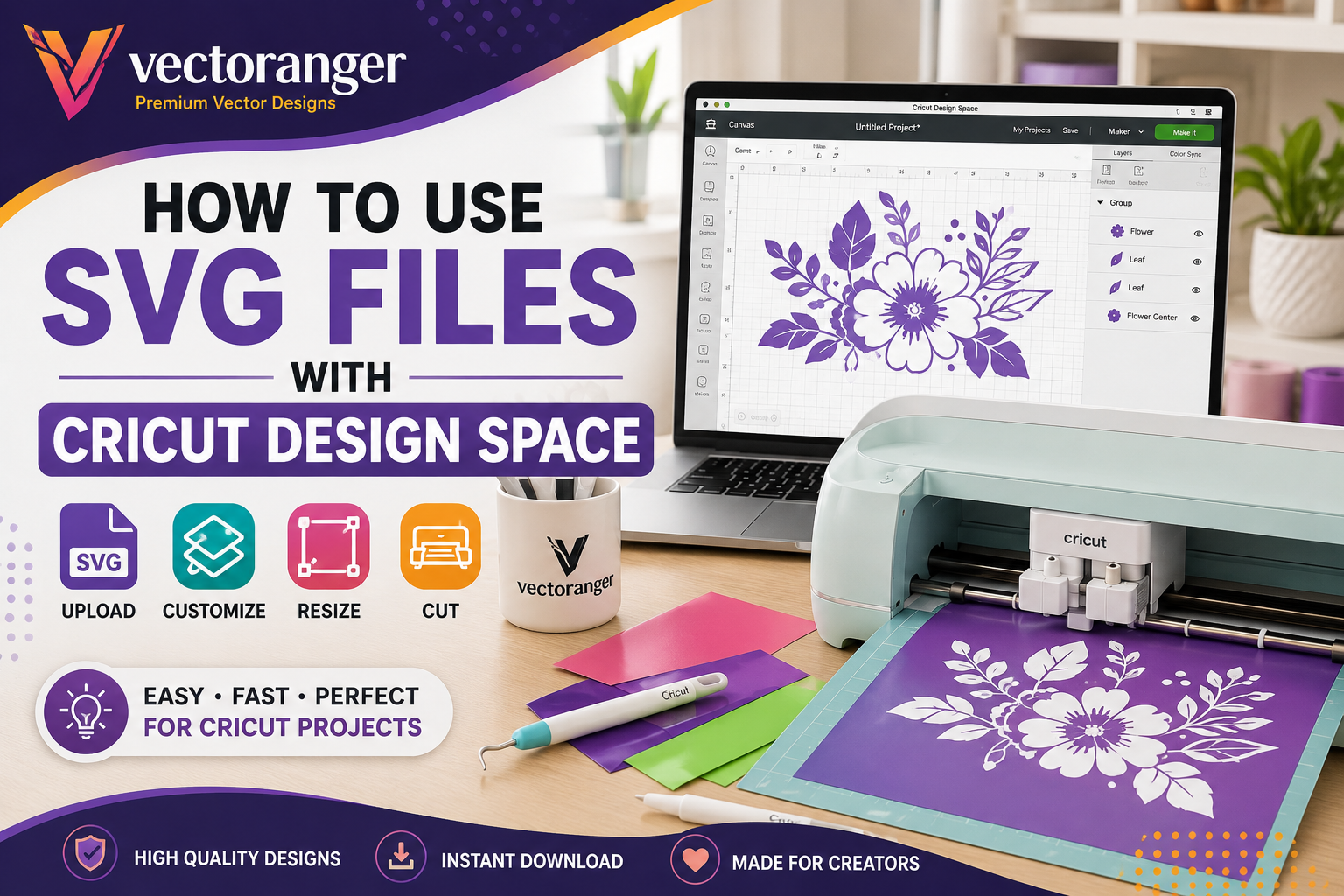
How to Use SVG Files with Cricut Design Space
If you use a Cricut cutting machine, SVG files can make your crafting workflow much easier.
SVG stands for Scalable Vector Graphics, a vector format commonly used for cutting-machine designs. Cricut Design Space supports SVG files as vector images, allowing you to upload them directly and use their defined cut paths in your project.
Whether you’re making a T-shirt, tote bag, vinyl decal, paper craft, or seasonal decoration, using the right SVG files for Cricut gives you more flexibility when creating your projects.
In this guide, we’ll look at the basics of using SVG files with Cricut Design Space and some ready-to-use SVG designs you can find at Vectoranger.
What Is an SVG File for Cricut?
An SVG file is a vector graphic made from paths and shapes rather than pixels.
This makes SVG particularly useful for Cricut projects because the design can be resized without being limited in the same way as a raster image.
Cricut Design Space recognizes SVG as a vector image format. When you upload an SVG, the cut paths are already defined, so you can add the design to your Canvas and prepare it for your project.
SVG files are commonly used for:
- T-shirts
- Tote bags
- Vinyl decals
- Paper crafts
- Home decorations
- Personalized gifts
- Seasonal projects
- DIY crafts
If you’re looking for ready-made designs, you can also explore the Vectoranger SVG Shop.
Why Use SVG Files with Cricut Design Space?
One of the biggest advantages of using SVG files is that they are designed around vector paths.
This means you can generally resize a design to fit your project without having to recreate the artwork.
SVG files can also contain multiple layers. Cricut explains that layered vector images can appear as grouped elements in Design Space, allowing the individual layers to be moved and sized separately after ungrouping.
This can be especially useful when working with designs that contain several colors or separate elements.
For example, a character SVG may contain different shapes for the main design, details, and additional elements. You can organize these elements in Design Space before sending the project to your Cricut machine.
How to Use an SVG in Cricut Design Space
You don’t need a complicated workflow to get started.
1. Open Cricut Design Space
Create a new project and open the Canvas.
2. Upload Your SVG
Select Upload and choose Upload Image.
Select your SVG file from your computer or drag it into the upload window. Cricut’s current instructions identify SVG and DXF as vector image formats.
3. Add the Design to Your Canvas
After uploading, select the design and add it to your Canvas.
You can then adjust its size and position according to your project.
4. Make Any Necessary Adjustments
If the design contains multiple layers, you can organize them as needed. You can also adjust the size and placement before cutting.
5. Prepare Your Project
Once you’re happy with the design, continue to the cutting stage and select the appropriate material and machine settings.
That’s essentially the basic workflow.
For beginners, the most important thing is starting with a clean, compatible SVG file.
What Makes a Good SVG for Cricut?
Not every SVG file is equally convenient to use.
When choosing an SVG for Cricut Design Space, consider a few things.
1. Use a Proper Vector File
Make sure you are actually downloading an SVG file rather than simply renaming another image format.
A properly prepared SVG should contain vector paths that Design Space can process.
2. Check the File Format
SVG is the main format to look for when your primary goal is a Cricut cutting project.
Additional formats such as PNG, DXF, and EPS can also be useful if you work with other software or creative workflows.
Several Vectoranger products include all four formats.
3. Keep the Design Practical
Very complicated designs may contain a large number of paths.
Cricut currently states that SVG uploads are limited to 5,000 paths. An SVG exceeding that limit can cause an upload error.
A clean and well-prepared design can make your workflow much easier.
4. Check the Usage Rights
Always check the license before using an SVG.
This is particularly important when a design features recognizable characters, brands, or other intellectual property.
Recommended SVG Designs for Cricut from Vectoranger
If you’re ready to start a Cricut project, Vectoranger offers a range of digital cut files in different themes.
Here are five designs worth checking out.
Gengar Pokemon SVG
The Gengar Pokemon SVG is a character-themed digital cut file available in the Vectoranger Cut File category.
The product includes:
- 1 SVG file
- 1 PNG file
- 1 DXF file
- 1 EPS file
Vectoranger describes the design for cutting machines, Silhouette users, Cricut, and other compatible workflows.
The SVG format makes it suitable to consider for Cricut projects where you want to work with a vector cut file.
Best for:
Pokemon-themed personal crafts and character-inspired Cricut projects.
Pokemon Ash Ketchum SVG
The Pokemon Ash Ketchum SVG is another Pokemon-themed design available from Vectoranger.
The download includes:
- 1 SVG file
- 1 PNG file
- 1 DXF file
- 1 EPS file
The product page describes it as a cut file for cutting machines, Silhouette users, Cricut, and more.
Best for:
Pokemon-themed personal craft projects and Cricut designs.
Get the Pokemon Ash Ketchum SVG
Anime One Piece SVG
For anime fans, the Anime One Piece SVG offers another option for a Cricut project.
The product is listed as a Cut File and includes:
- 1 SVG file
- 1 PNG file
- 1 DXF file
- 1 EPS file
Vectoranger describes the design for cutting machines, Silhouette users, Cricut, and other compatible workflows.
Best for:
Anime-themed personal crafts and creative Cricut projects.
Harry Potter SVG Bundle
If you want multiple designs instead of a single SVG, the Harry Potter SVG Bundle is an interesting option.
The bundle includes:
- 13 SVG files
- 13 PNG files
- 13 DXF files
- 13 EPS files
Vectoranger lists the bundle for cutting machines, Silhouette users, Cricut, and other compatible workflows. The product page also specifies a personal license.
Having multiple designs in one bundle can be useful if you’re planning several related personal craft projects.
Best for:
Harry Potter-themed personal crafts and users who want a larger collection of designs.
Get the Harry Potter SVG Bundle
Grinch Face SVG
For holiday crafting, the Grinch Face SVG is a Christmas-themed cut file available from Vectoranger.
The product includes:
- 2 SVG files
- 2 PNG files
- 2 DXF files
- 2 EPS files
It is described for cutting machines, Silhouette users, Cricut, and other compatible workflows.
Best for:
Christmas crafts, seasonal decorations, and personal holiday projects.
How to Choose the Right SVG for Your Cricut Project
With so many SVG designs available, choosing one can be easier when you start with your project first.
Think about what you’re trying to make.
If you’re creating a character-themed project, a design such as Gengar Pokemon SVG or Pokemon Ash Ketchum SVG may be a good starting point.
For anime projects, you can explore Anime One Piece SVG.
If you want multiple designs in one purchase, a bundle such as the Harry Potter SVG Bundle may be more suitable.
And if you’re preparing seasonal crafts, Grinch Face SVG can be a useful option for Christmas projects.
The most important thing is to check the individual product page for the included files and usage terms before purchasing.
SVG File Formats You May Find at Vectoranger
Many Vectoranger cut files come with several file formats, giving you more flexibility depending on your software.
SVG
Best suited for compatible cutting-machine workflows such as Cricut.
PNG
Useful for clipart, printables, and other image-based projects.
DXF
Useful for supported Silhouette workflows.
EPS
Useful for vector-editing software such as Adobe Illustrator, Inkscape, and CorelDRAW.
For Cricut Design Space, SVG is generally the format you’ll want to use when your goal is to work with a vector cut file.
Important: Check the Usage Terms
Before using any SVG design, always check its license.
This is especially important for designs featuring well-known characters or brands.
For example, the Vectoranger Gengar Pokemon SVG and Pokemon Ash Ketchum SVG product pages state that the character copyrights and trademarks belong to their respective owners and that these particular designs are for personal/non-commercial use.
The Harry Potter SVG Bundle also specifies personal use or craft projects and includes a personal license.
Always follow the usage terms shown on the individual product page.
Start Creating with SVG Files
Using SVG files with Cricut Design Space doesn’t have to be complicated.
The basic process is simple:
Choose an SVG → Upload it to Design Space → Add it to your Canvas → Adjust the design → Prepare your material → Start cutting.
The key is choosing a quality SVG that is compatible with your workflow.
Whether you’re interested in Pokemon, anime, Harry Potter, Christmas, or other themes, Vectoranger offers digital cut files that can help you get started with your next creative project.
If you’re ready to explore more designs, visit the:
Final Thoughts
Learning how to use SVG files with Cricut Design Space is one of the most useful skills for anyone starting with Cricut projects.
SVG files are designed around vector paths, making them convenient for resizing and preparing for cutting. Cricut Design Space supports SVG as a vector upload format and can work with layered SVG designs.
Once you understand the basic upload process, you can focus less on the technical side and more on creating your project.
From Gengar Pokemon SVG and Pokemon Ash Ketchum SVG to Anime One Piece SVG, Harry Potter SVG Bundle, and Grinch Face SVG, you can find different themes at Vectoranger for your personal crafting needs.
Ready to find your next Cricut design?

1 Comment